

How to add an "In-Game Review Link" to your skin listings?
Created: 6 months ago
You can now create in-game review links for your skin listings anytime you want.
This way, your buyer can view the skin's in-game appearance.
1- First, select the skin you want to add an in-game screenshot from your Steam inventory.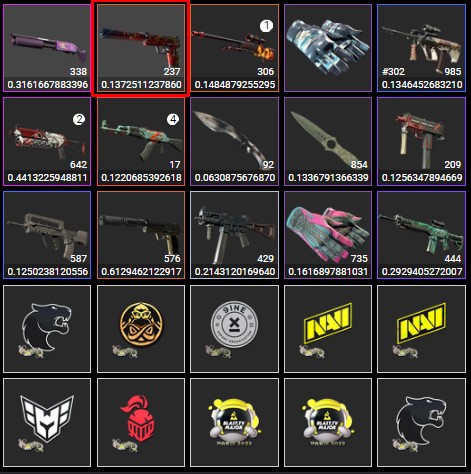
2- After selecting the related product, the skin's features appear on the right.
Right-click on the "Inspect in Game" button at the bottom and click "Copy Link Address".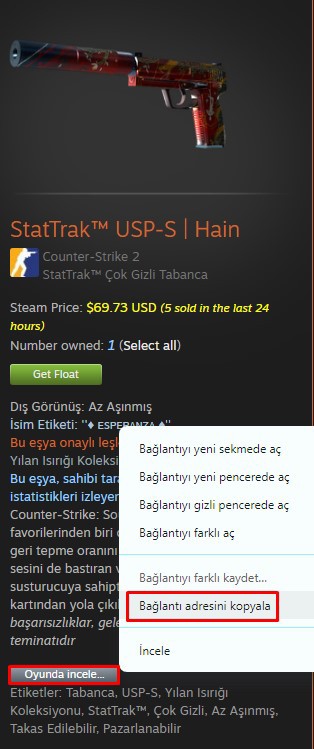
3- Paste the copied link into the relevant section and click the "Save" button.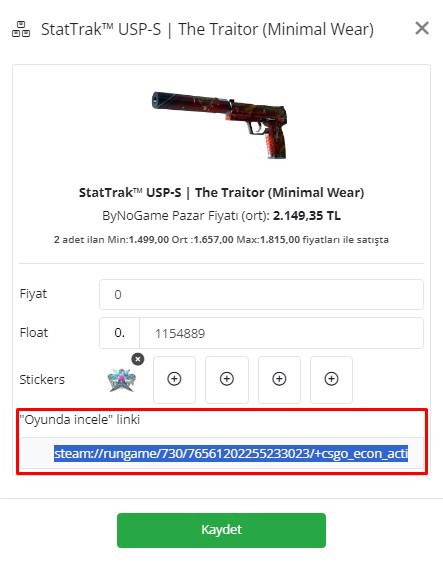
That's it. 🥳
🔍 The Importance of In-Game Appearance with the FPS and Rank System
CS2 FPS display feature lets the buyer see the skin in the clearest and smoothest way. The higher the FPS value, the more realistic the skin's details (light reflections, color tones, sticker brightness, etc.) appear. Also, when taking the CS2 rank system into account, high-ranked players usually choose skins based on performance and looks. Buyers can examine the weapon's model, condition, and effects during ranked matches using the in-game appearance link.
This increases trust in your listing and chances of sale.
Did this answer help you?
0 out of 0 people found this helpful