

What is Make an Offer / Buy, and how does it work?
Created: 3 years ago
ByNoGame's new and amazing system has finally met with you all. So, what is this system, and how is it used? 🧐
Buyers can now "Make an Offer" on listings.
NO EMPTY Offers!
For a buyer to be able to make an offer, they need to have the bid amount available in their account balance.
No room for lowballing or absurd offers!
The lowest offer that can be made is 50% below the minimum product price.
For a product priced at 100 Turkish Lira, the lowest possible offer would be 50 TL.
Buyers can then incrementally increase their offers each time.
How to make an offer?
1)Press the 'Make Offer/Buy Now' button beneath the advertisement you like.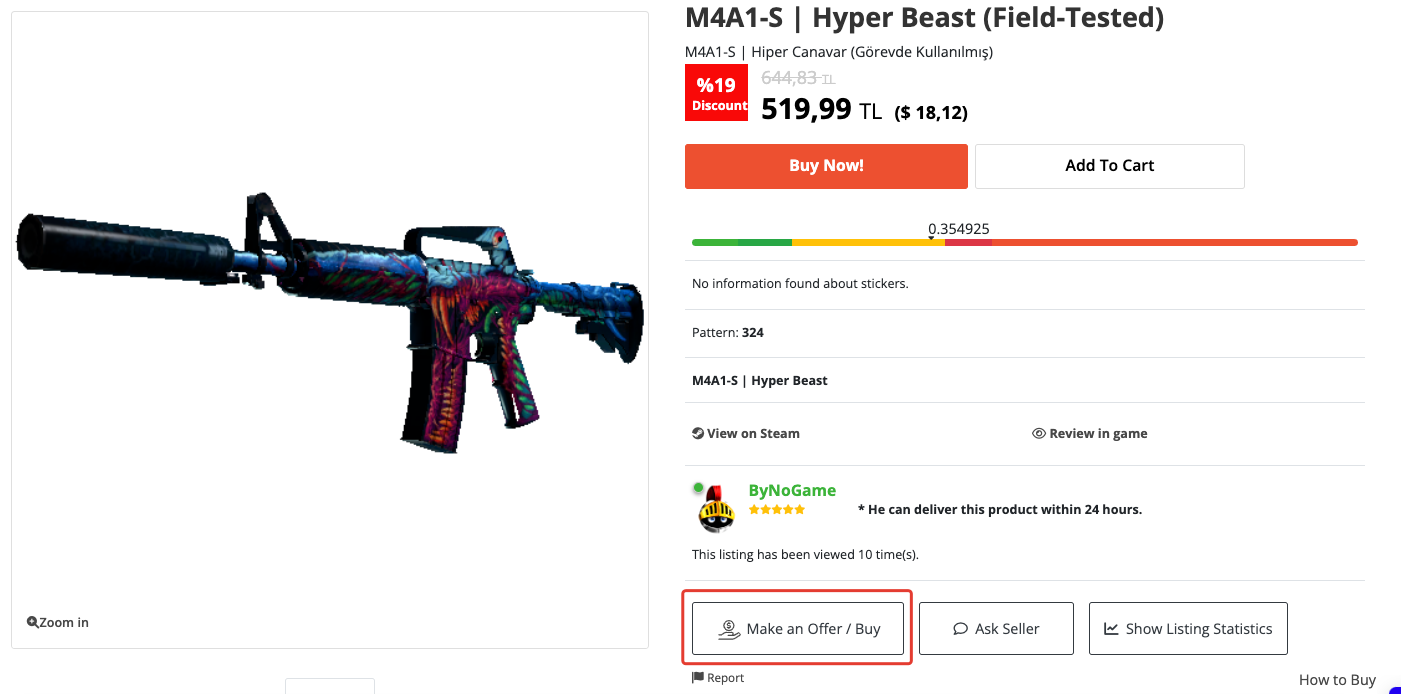
2) In the first blank, enter the amount you are offering, and in the second blank, if it is a Steam advert, enter your trade URL. If it is a Knight Online advert, enter your nickname.
If your information is saved, you can use the 'select or add' button. If you want to add new information, use the 'Add' button.
Let's also show the way to the one asking, 'Where can I find my trade URL?' here. :) 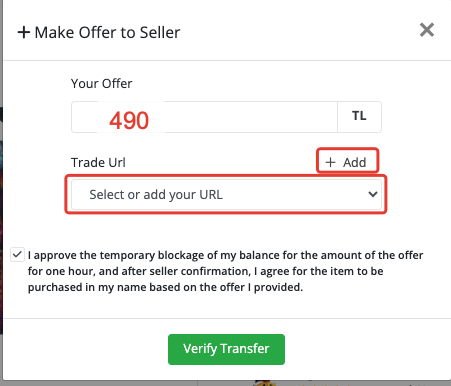
3) After entering the necessary information, you should carefully read and confirm the following warning: "Once you submit, your offer will be sent. Are you sure you want to proceed?" Then, click the "Verify Transfer" button to send your offer. 🚀
Congratulations! Your offer has been successfully saved. 🥳
Where can you see this offer?
4)You can access all offers through 'My Account' > 'My Offers'.
5)You can access your latest offers through 'Recent Offers' and use the 'Show Filters' button to specify details such as date, advert, and more.
When the 'Remaining time for offer,' namely 60 minutes, elapses, the offer amount will automatically return to your account.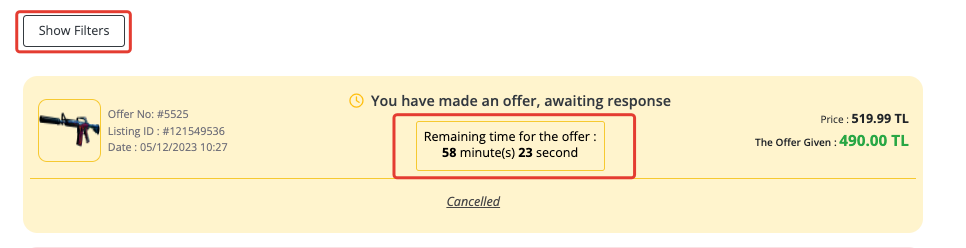
6)If you want to reclaim your balance before the 60-minute period ends, simply use the 'Cancel' button.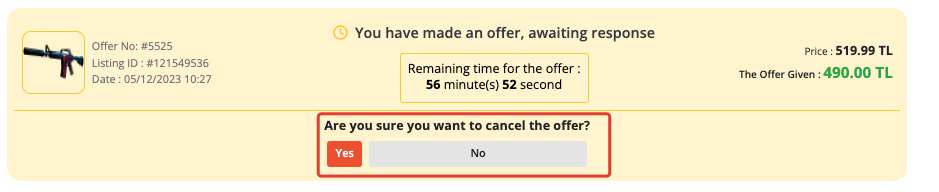
7)If the seller accepts your offer, it will appear as follows, and you will have automatically purchased the advert.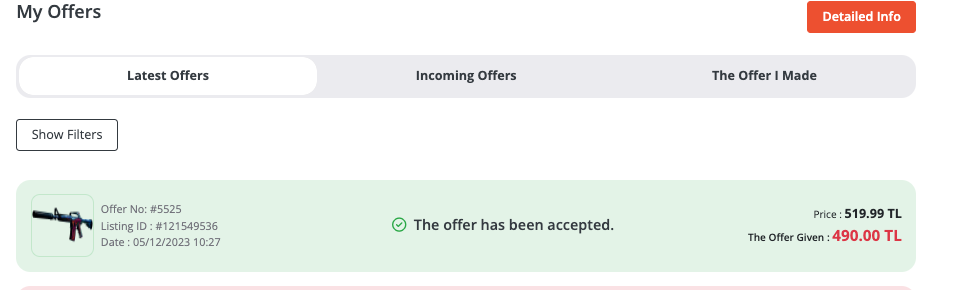
8)You can view your purchases through 'My Account' > 'My Orders'.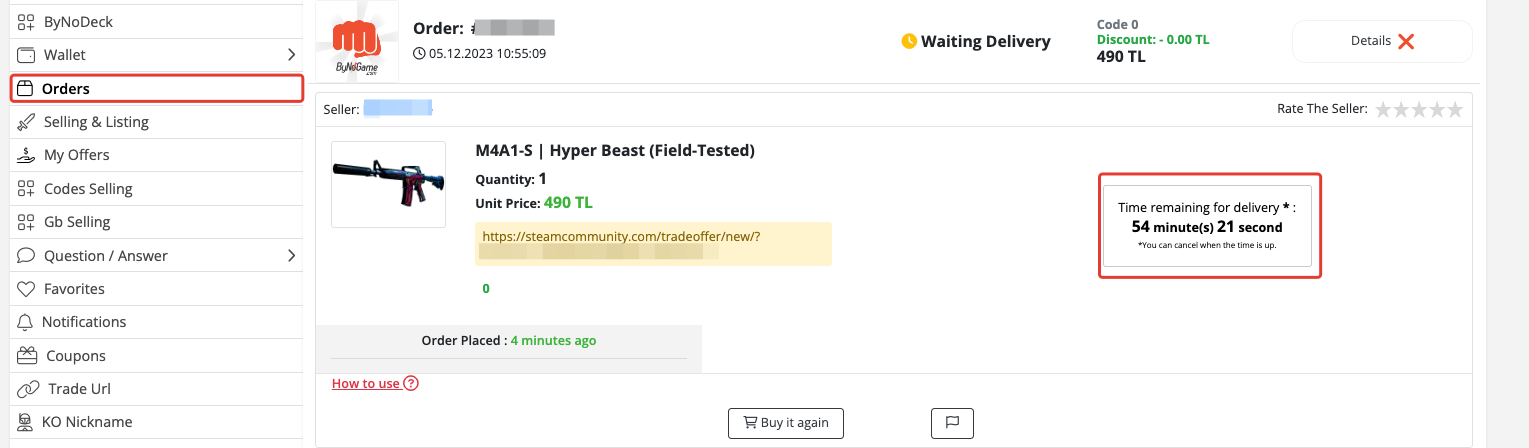
 We wish you pleasant shopping!
 Did this answer help you?
0 out of 0 people found this helpful