

How can I customize my Donate Bar?
Created: last year
With ByNoGame Donate Bar, you can showcase your donation goals transparently and impressively. 🎯
Motivate your supporters and speed up the donation process! 🚀
Click here to customize your Donate Bar instantly!
General Settings
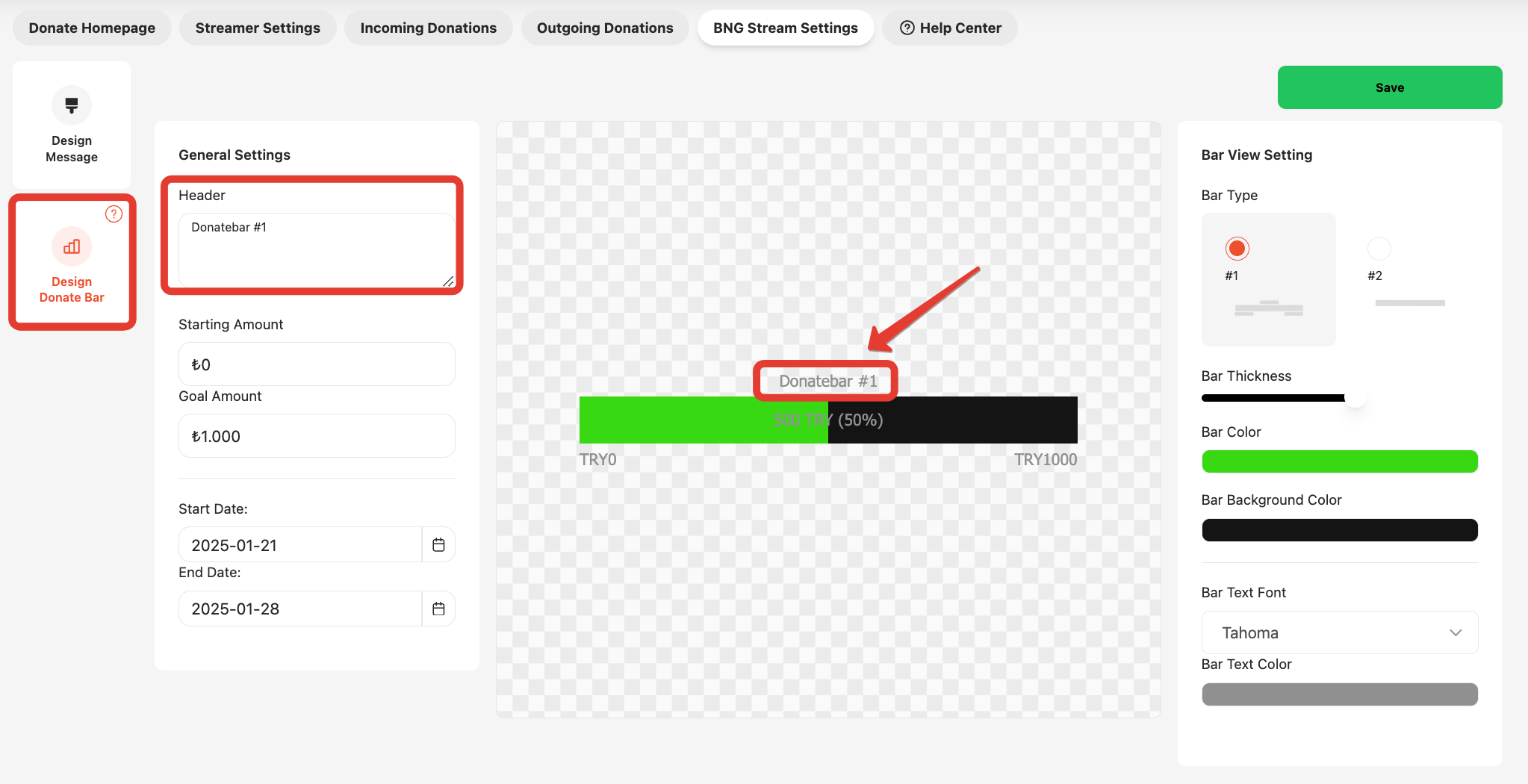
1) Set a header to give your Donate Bar a unique name.
2) Set the Starting Amount to define your campaign's initial value and the Goal Amount to set your total target.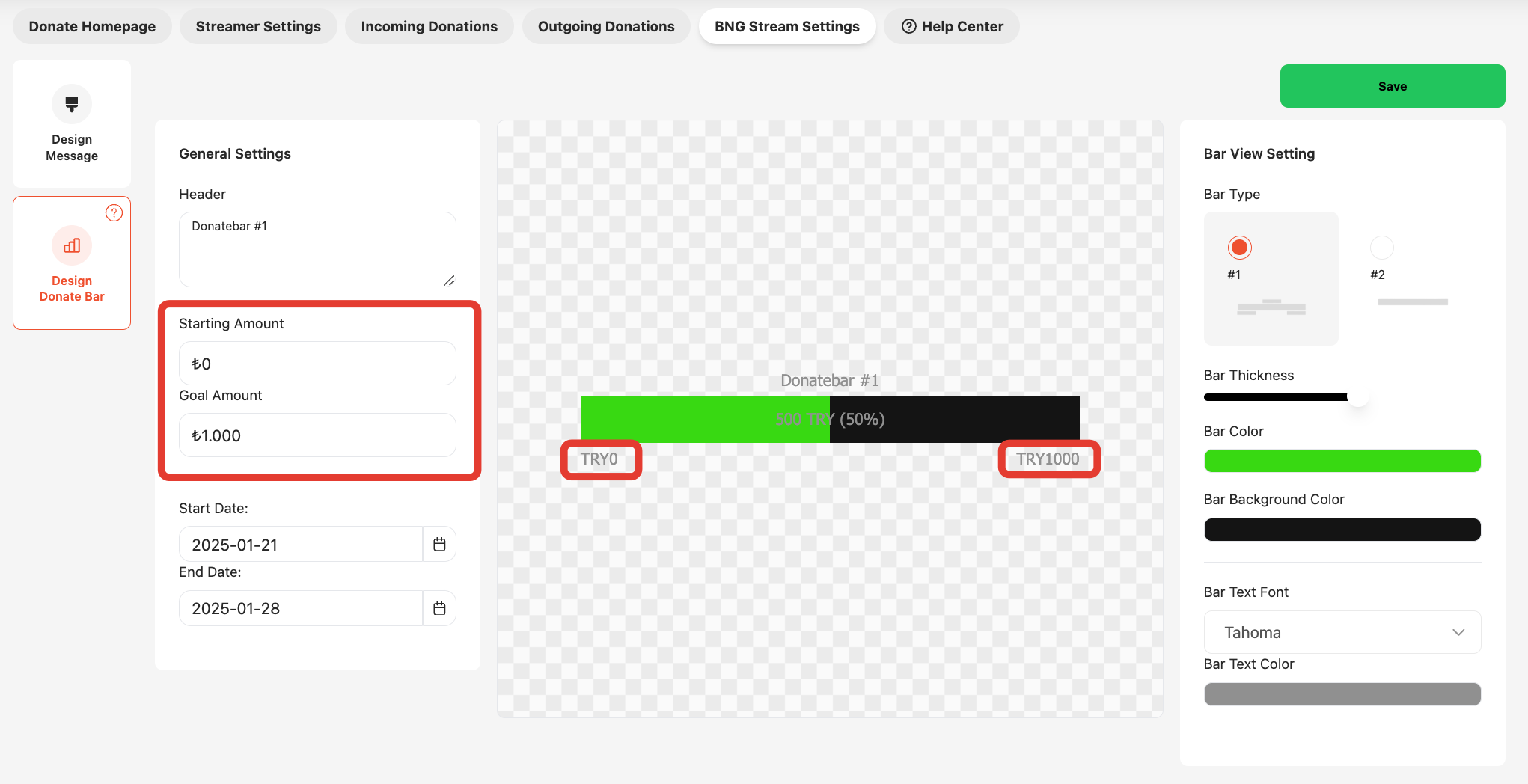
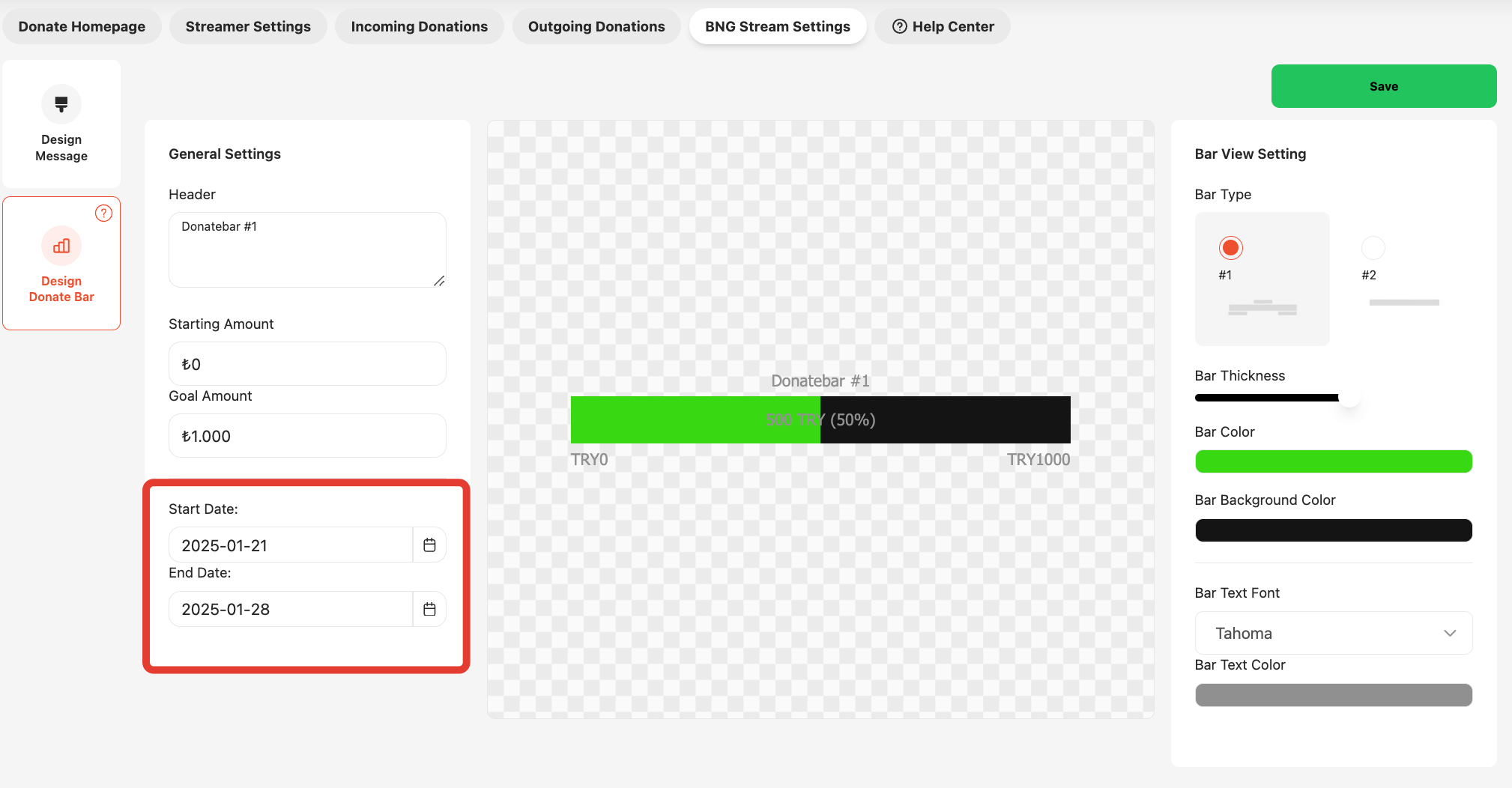
3) Set the Start and End Date to choose the active duration of your campaign.
Bar Design Settings
4) Customize your design by selecting Bar Type #1 or #2.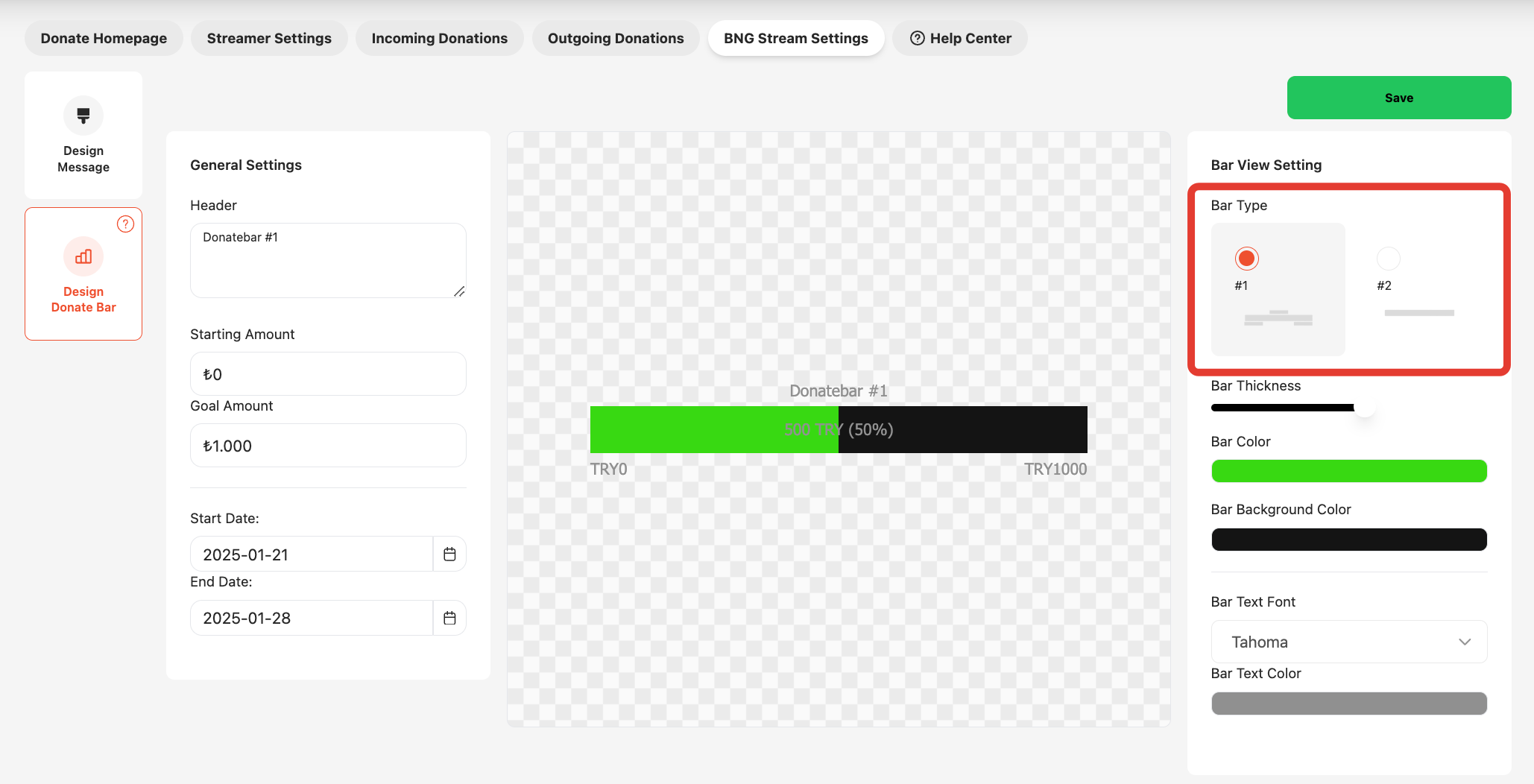
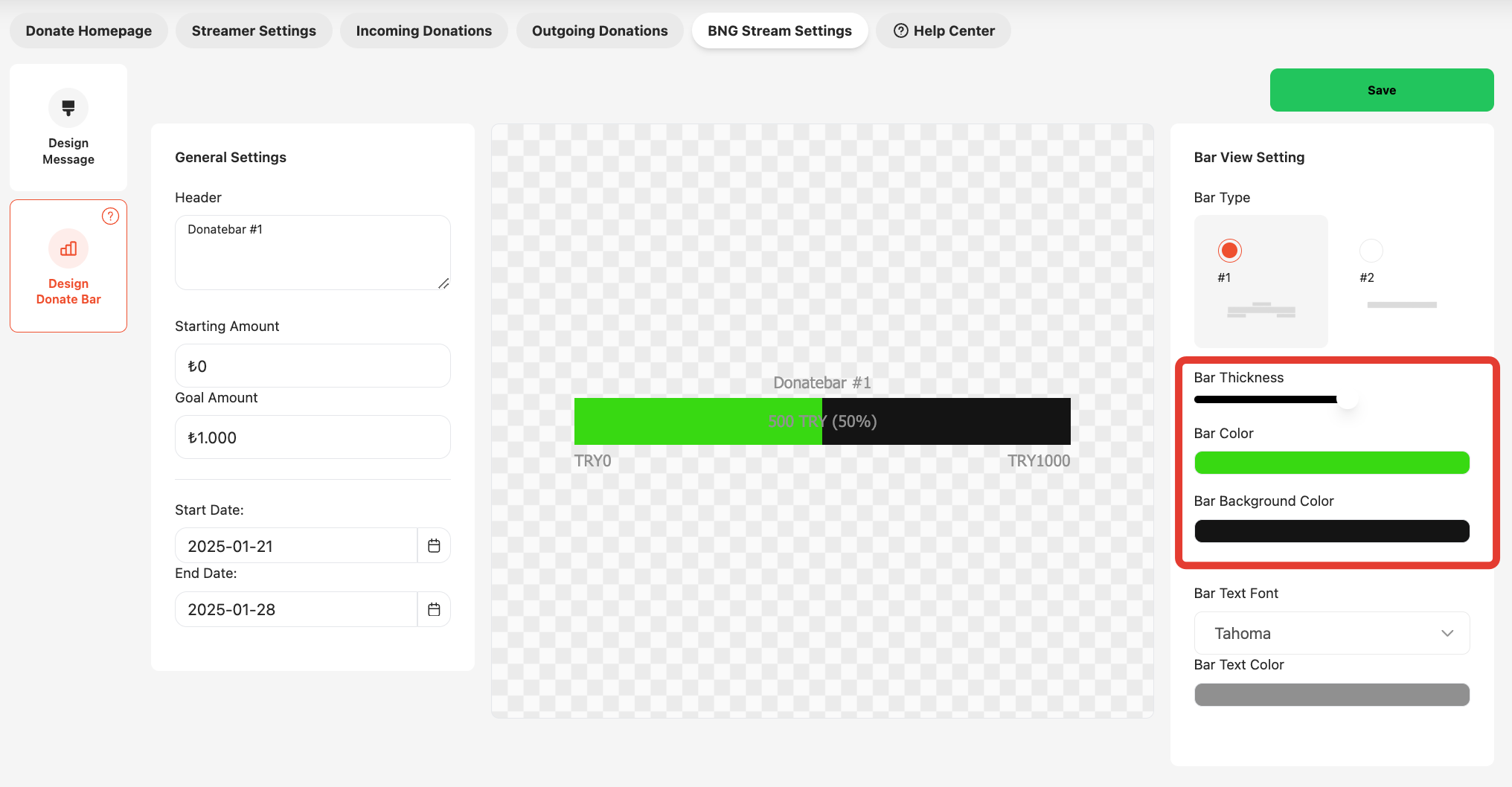
5) Adjust the Bar Thickness to set its width or thinness.
Customize your Donate Bar by selecting your favorite colors for the Bar and Bar Background.
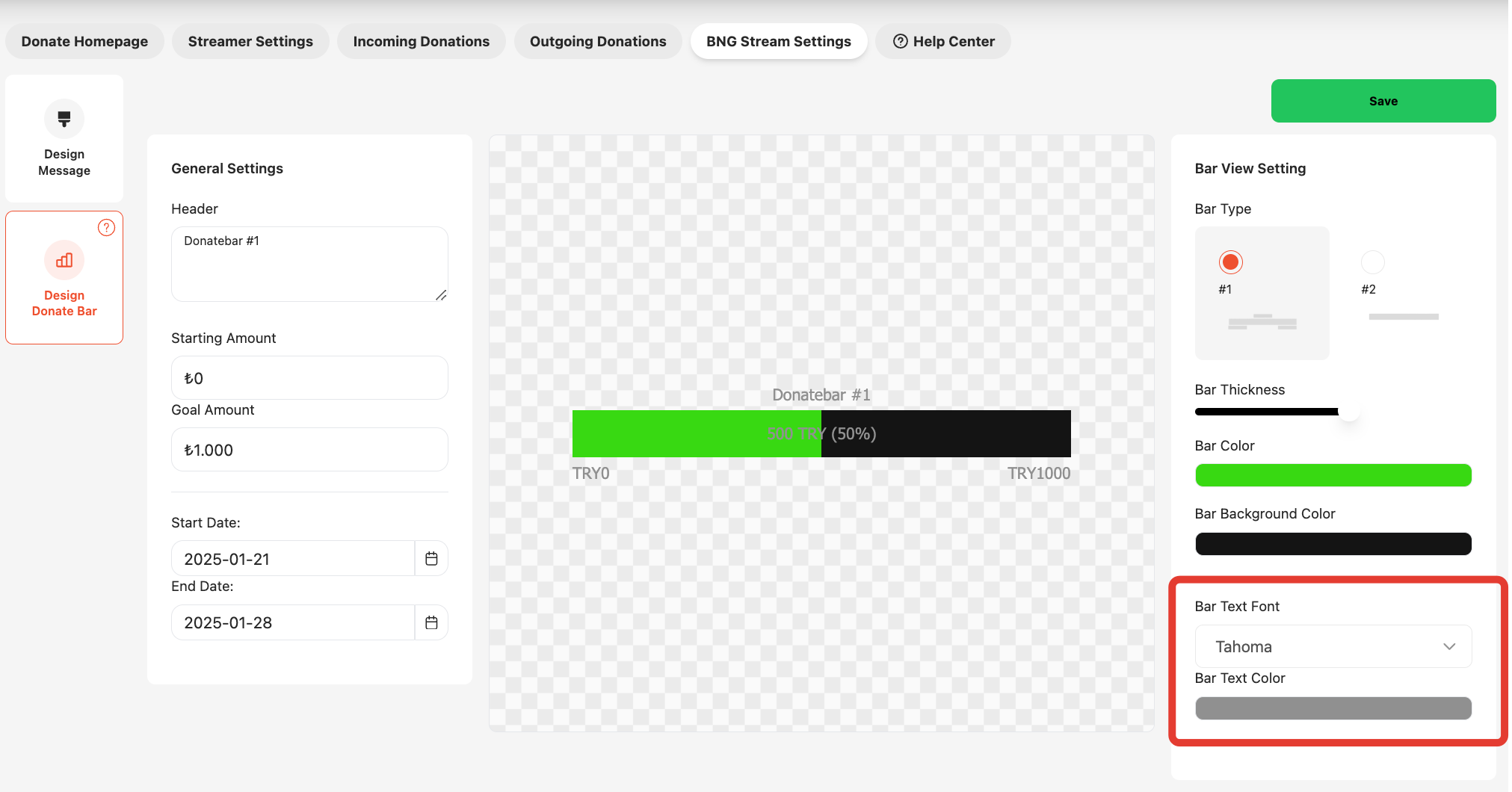
6) Choose your Bar Font and Color to create a stylish and aesthetic look.
 ByNoGame wishes you happy streaming!
Did this answer help you?
0 out of 0 people found this helpful