You can share the donations you receive with your viewers through Streamlabs.
For this, you first need to have a Donate link on ByNoGame. You can check here to view and update your donation link.
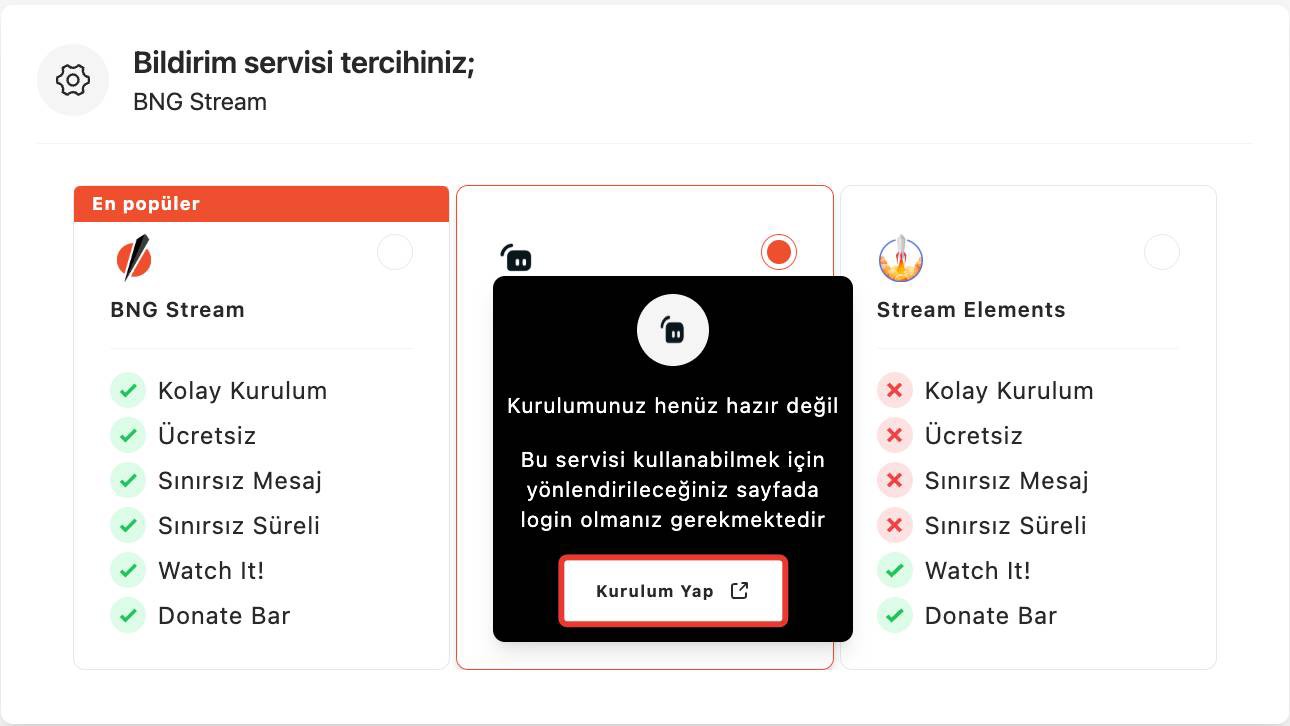
1) Go to Streamer Settings. Select Streamlabs as your notification service preference and click "Make Setup."
Log in on the redirected page to complete the first step.
After completing the setup, make sure to follow the steps below accurately to ensure that incoming donations appear on your stream.
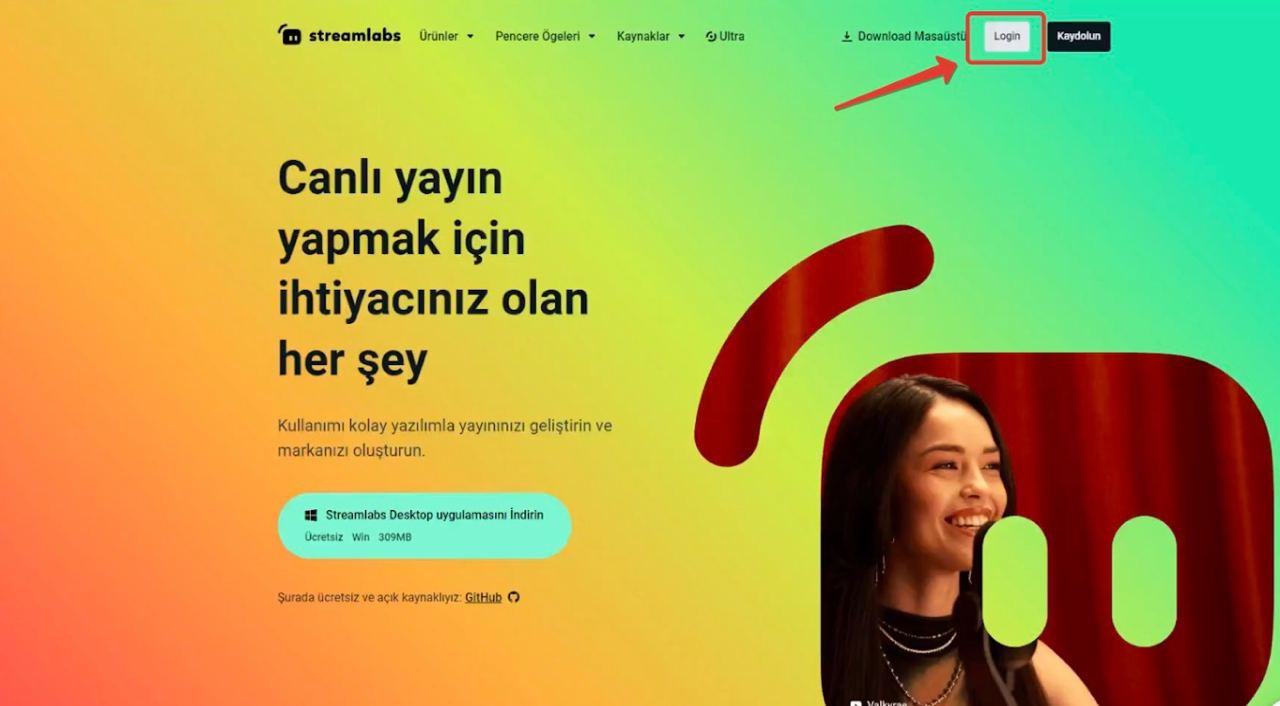
2) Log in to your Streamlabs account.
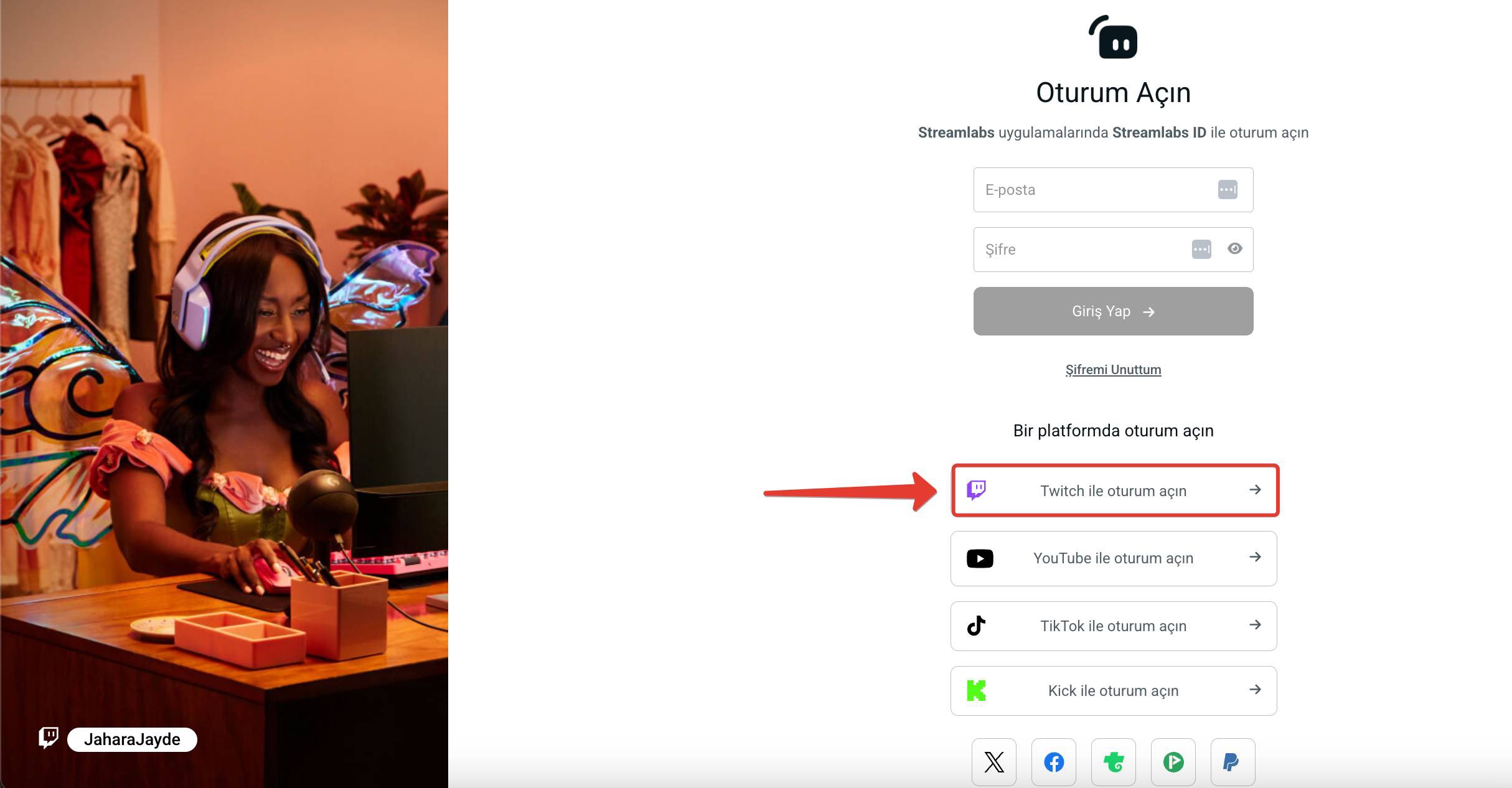
3) Connect with your streaming platform and click the "Authorize" button to grant account permissions.
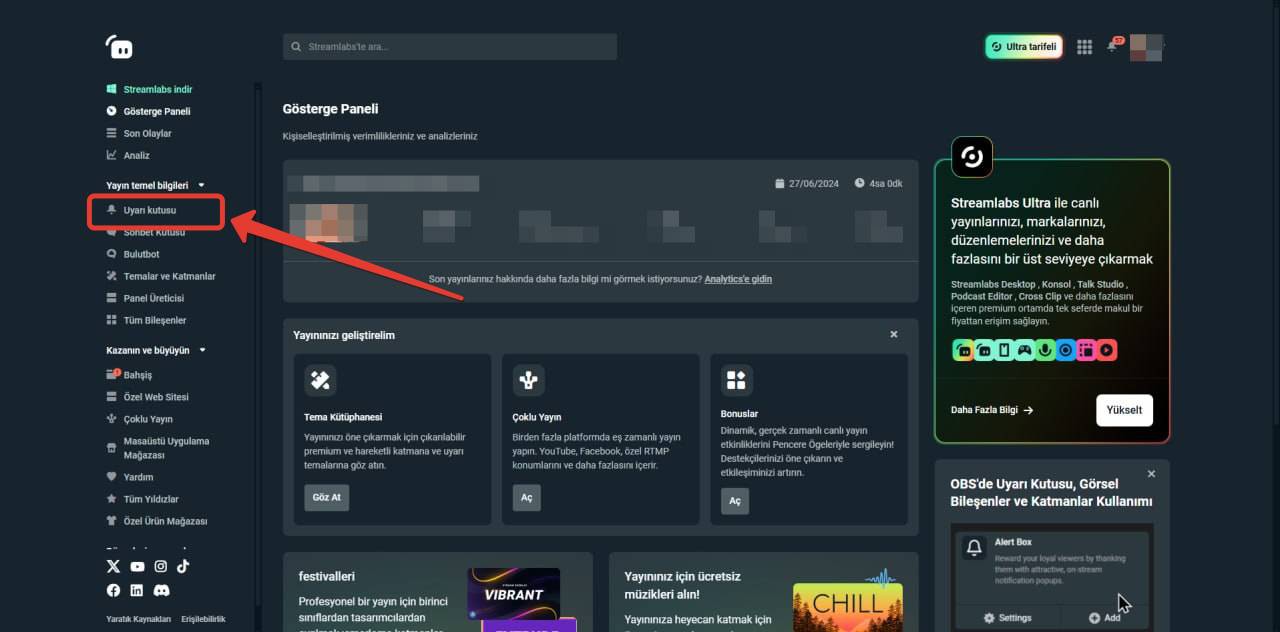
4) Click on the "Alert Box" option.
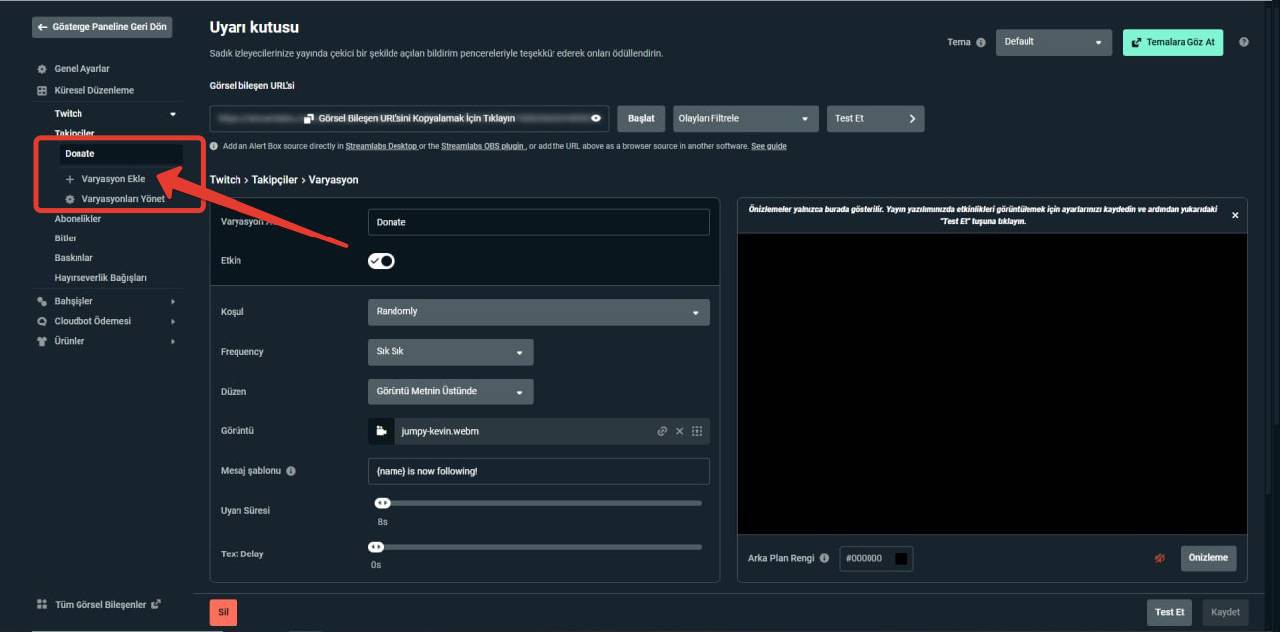
5) Then click on the "Variations" option and create a new variation.
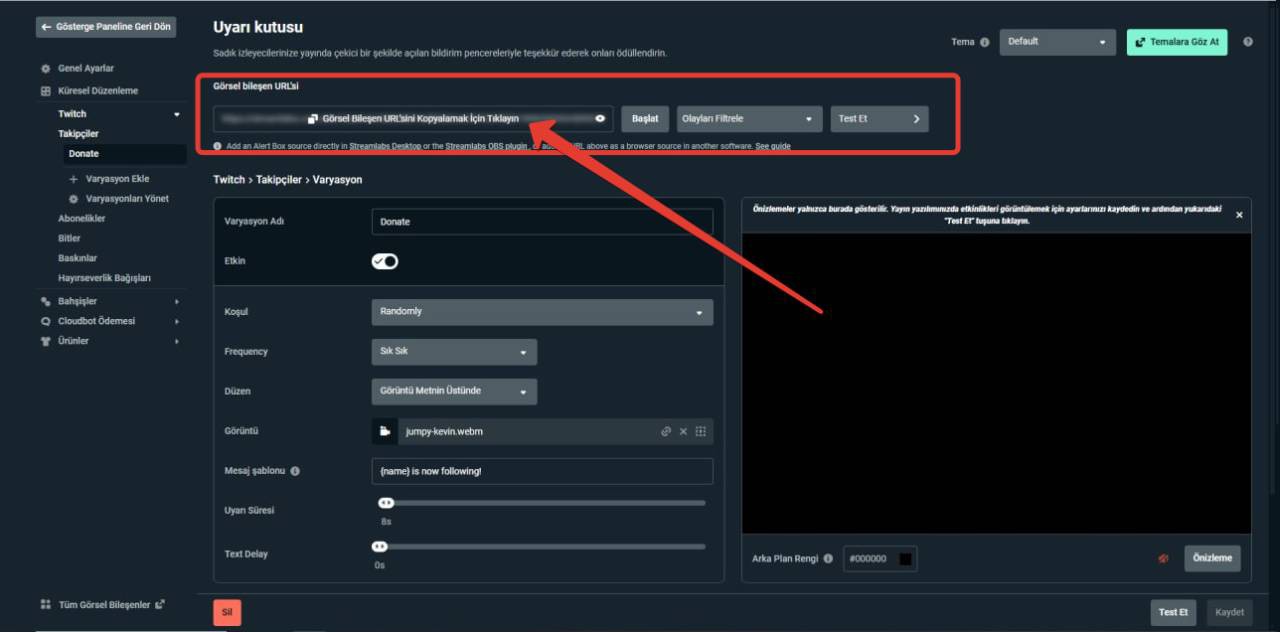
6) Copy the Widget URL.
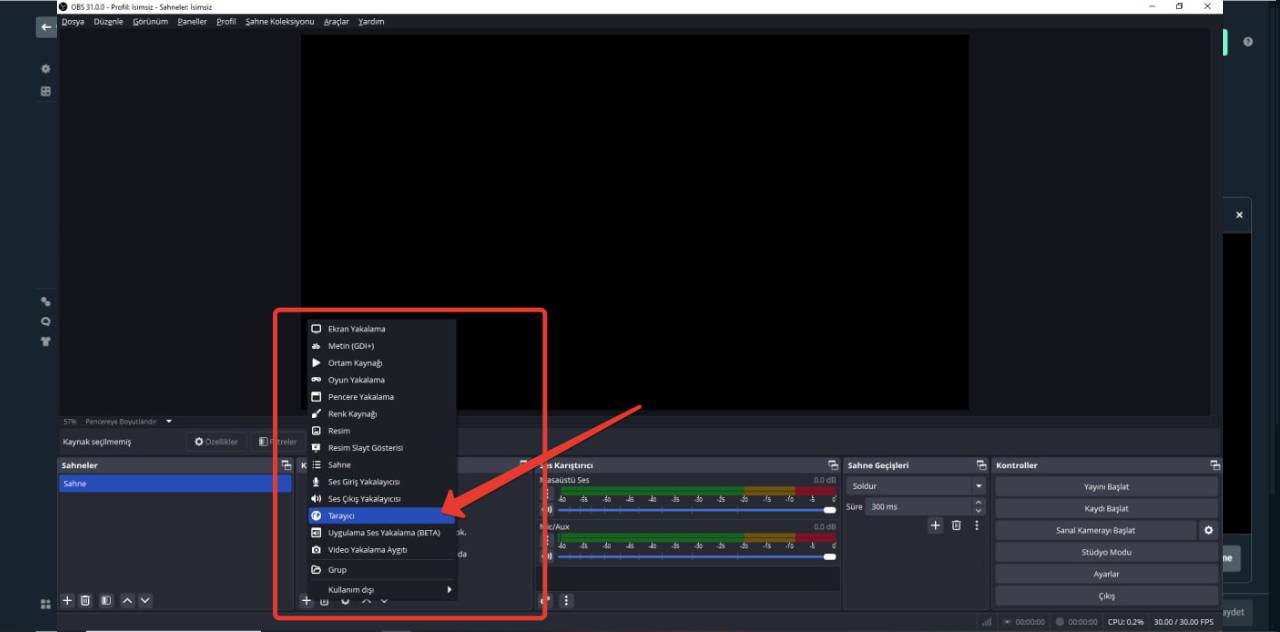
7) Open OBS and add a browser source to your new scene.
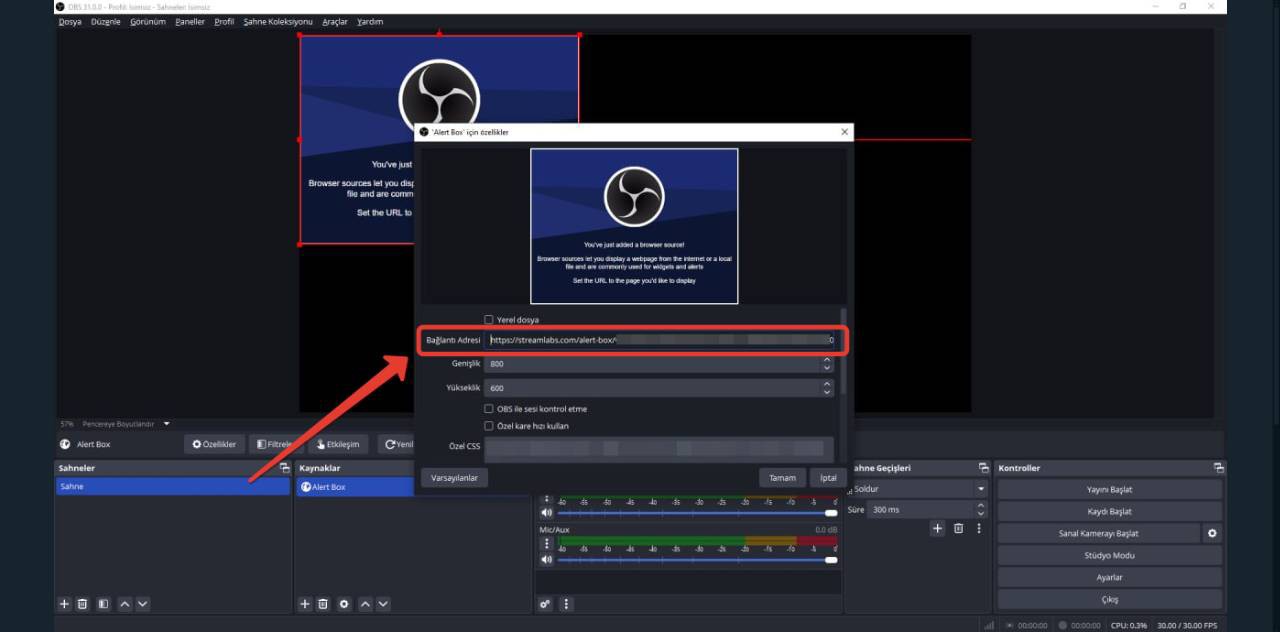
8) Paste the Widget URL you copied into your browser source and save it.
Congratulations, dear streamer! You have successfully completed all the steps. 🎉
If the test donation is still not coming through, here are a few things you should check:
• OBS must be up to date.
• Alerts should be visible in the sources section.
• Only the Streamlabs setup should be active.
Now that all checks are complete, you're ready to stream! 🎉
We wish you a great stream!
 We wish you a great stream! 🎉

